
Help
Translate text
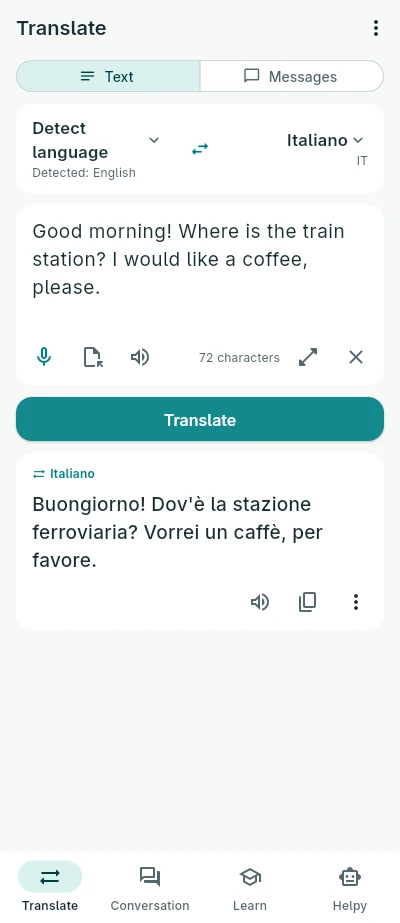
Type, paste or dictate a text. Helpy Translate recognises the language as you type; you can also choose it. Choose the language to translate into and tap Translate. Names, addresses, e-mails, numbers and dates are usually kept as they are. You can copy the translation, hear it read aloud or save it as a file.
Quick messages translate short messages one after another, each at once, read aloud on demand or always.
Files
Open a text file and choose Translate into a file. The translation goes into a new file and the time left is shown. A long translation can be paused and continued later, even after closing the app.
Conversation
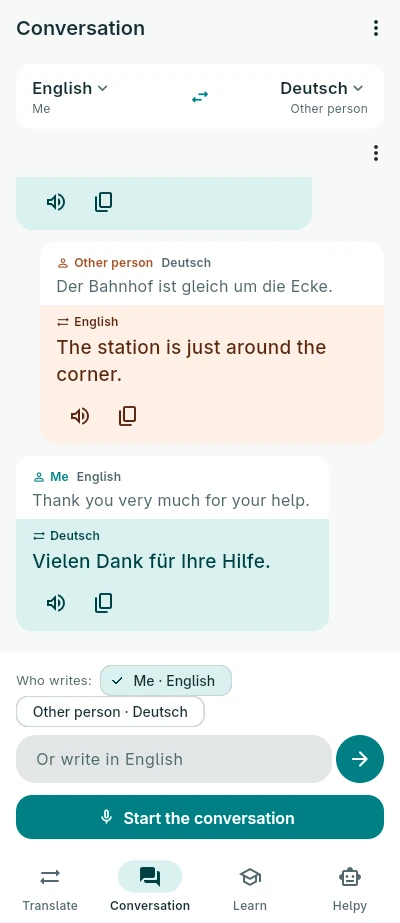
Choose your language and the other person's. The phone listens in the language of the one whose turn it is, translates, reads the translation aloud and then listens to the other one. Tap Translate now when you are done speaking; pause or end at any time. If speaking is not possible, choose who writes and the conversation goes on in writing.
Helpy
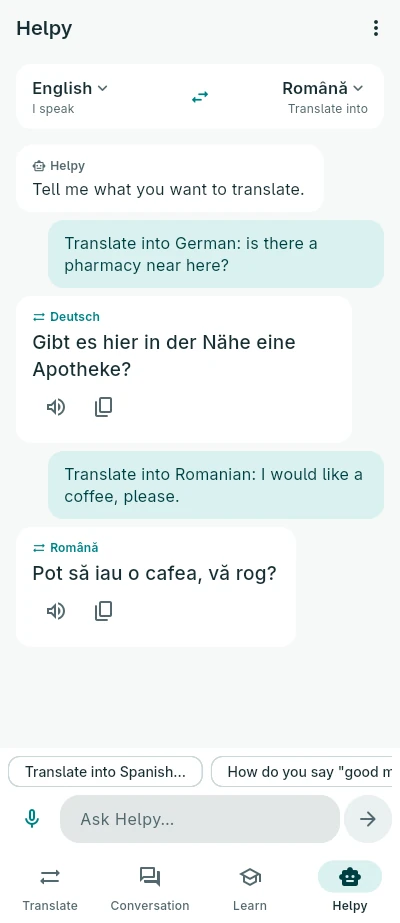
Ask in your own words: “translate into Spanish: where is the station?” or “how do you say thank you in German?”. Helpy answers with the translation.
Learn
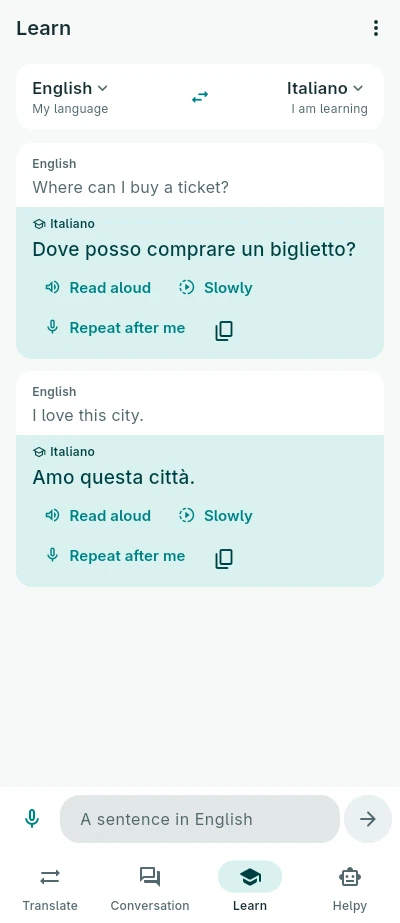
Learn turns a sentence in your language into the language you are learning, so you can hear it and say it.
- Open Learn and choose My language and the language you are learning (I am learning).
- Write or say a sentence in your language. You get it in the language you are learning, read aloud.
- Tap Read aloud to hear it again at the usual pace, or Slowly to hear it slower.
- Tap Repeat after me and say the sentence. The words you said right turn green, the others are underlined, and you see the share you said right. Listen and try again as often as you like.
The sentences stay on the screen while the app is open; copy one to keep it. To hear and repeat without a connection, the language you are learning must be downloaded for voice on the phone (see below).
Voice without a connection
Dictation uses your phone's speech recognition and reading aloud uses your phone's voices; Helpy Translate does not record or keep your voice. To speak and listen without a connection, the phone needs each language downloaded, once for hearing it and once for reading it aloud.
- Open Settings → Languages for voice in the app.
- Green means the language is on the phone; orange means it is missing.
- Tap a missing language (or Download all) and the phone downloads it with its own services.
Until a language is downloaded, the phone's speech service may use its internet connection. On phones with more than one speech service (for example Google's and Samsung's), choose the one to use in Settings: one may have languages offline that the other does not. Typing and translating text always work offline.
Privacy
The translation runs on your phone. The app has no internet access, needs no account and collects no data. The only permission is the microphone. Read the full privacy policy.
Contact
Questions or a translation that came out wrong? Write to [email protected].